

Table of Contents8 sections
How Git decides who you are—from authentication to commit history.
If you only use one Git account, life is simple.
Clone a repository, commit, push, repeat.
The moment you start using multiple accounts—personal projects, work repositories, open source, client projects—the problem changes completely.
It is no longer:
Can Git support multiple accounts?
It becomes:
How does Git decide which identity to use?
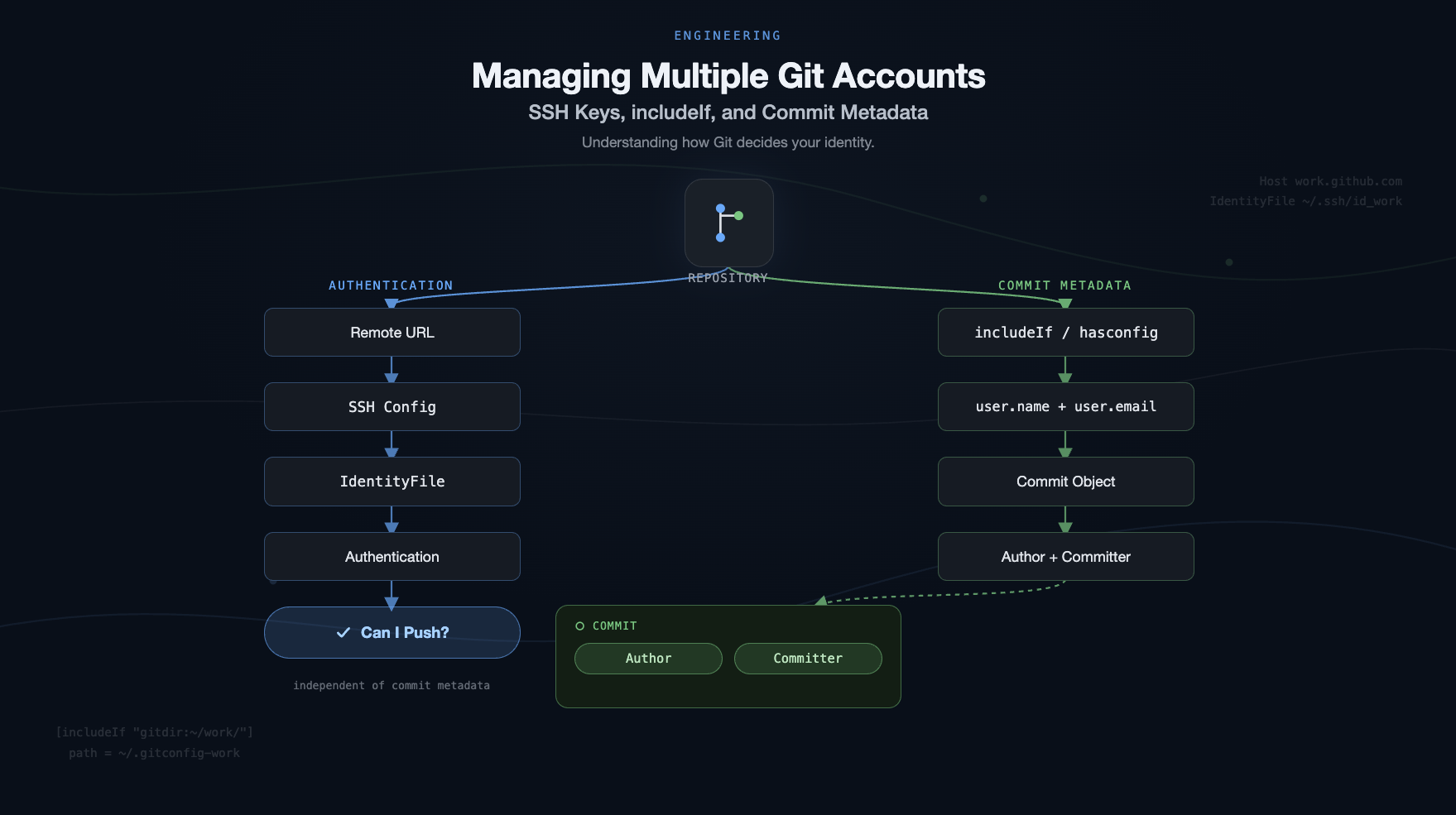
The interesting part is that this question actually hides three different systems:
Authentication — Which account is allowed to push?
Configuration — Which
user.nameanduser.emailshould Git use?Commit metadata — Why can one commit legitimately contain two identities?
Most articles only cover one of these.
Understanding how all three fit together makes Git's behavior much easier to reason about.
Layer 1: Authentication
Authentication answers a single question:
Can I push to this repository?
For multiple GitHub accounts, I keep one SSH key per account.
Host github-personal
    HostName github.com
    User git
    IdentityFile ~/.ssh/id_ed25519_personal
    IdentitiesOnly yes

Host github-work
    HostName github.com
    User git
    IdentityFile ~/.ssh/id_ed25519_work
    IdentitiesOnly yes
Each repository simply uses the appropriate host:
git remote set-url origin git@github-work:company/project.gitor
git remote set-url origin git@github-personal:username/project.gitFrom this point onward, SSH always knows which credentials to use.
Authentication solved.
Except... authentication is only half of the story.
Layer 2: Commit Identity
Even after Git authenticates successfully, it still needs to decide what gets written into every commit.
Specifically:
user.nameuser.email
These values become part of the commit forever.
The most common solution is includeIf.
[user]
    name = Tuan
    email = personal@example.com

[includeIf "gitdir:~/work/"]
    path = ~/.gitconfig-work
[user]
name = Work Account
email = work@example.comThe idea is elegant.
Repositories under ~/work/ automatically use your work identity.
Everything else falls back to your personal one.
For many developers, that's good enough.
Until it isn't.
The subtle problem with gitdir
The configuration quietly assumes one thing:
Every work repository always lives under
~/work/.
Reality rarely stays that tidy.
Maybe you clone into /tmp.
Maybe you're helping a teammate.
Maybe you're experimenting with git worktree.
Maybe you're simply organizing repositories differently.
None of those are unusual.
Once the repository no longer matches the configured path, includeIf stops applying.
Git doesn't complain.
It doesn't warn you.
It simply uses another valid identity.
From Git's point of view, nothing went wrong.
From yours, the commit now belongs to the wrong person.
That's the real weakness of path-based configuration:
it fails silently.
Make Git fail loudly
The single configuration change I wish I'd enabled from day one is:
[user]
    useConfigOnly = true
Remove the default global user.name and user.email.
Now every repository must explicitly provide an identity.
If no configuration matches:
fatal: no email was given and auto-detection is disabledInstead of silently producing incorrect metadata, Git refuses to continue.
Loud failures are almost always cheaper than quiet ones.
Match the repository, not the folder
Git 2.36 introduced an even better option:
[includeIf "hasconfig:remote.*.url:git@github.com:company/**"]
    path = ~/.gitconfig-work
Instead of asking:
Where is this repository?
Git asks:
Who owns this repository?
That's a much better abstraction.
A work repository is still a work repository whether it lives in ~/work, /tmp, or somewhere else entirely.
Whenever possible, I prefer matching ownership over directory structure.
Authentication ≠ Commit Identity
At this point, it helps to think about Git as two completely separate pipelines.
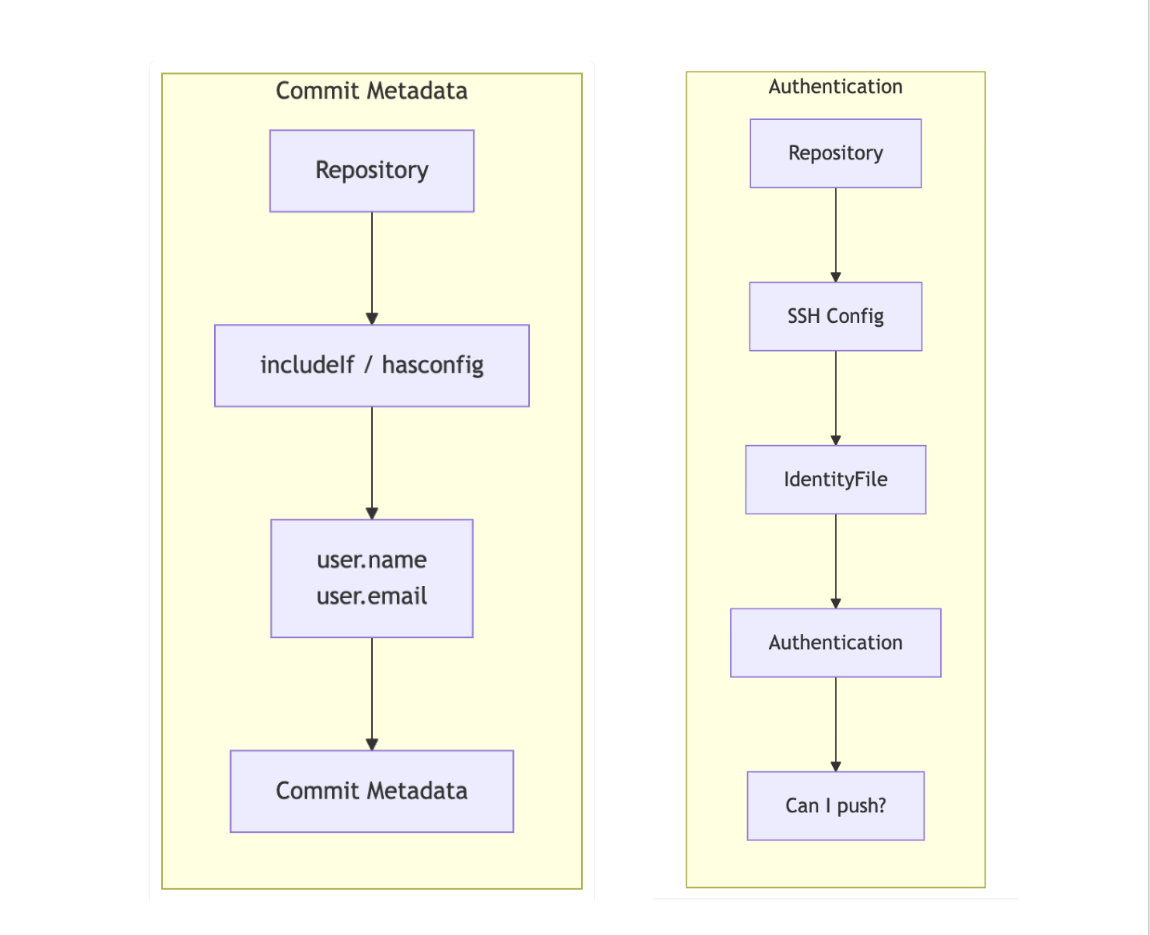
These systems don't know about each other.
You can authenticate using your work SSH key while Git writes your personal email into the commit.
Or the other way around.
Understanding this separation removes a lot of the mystery around multiple Git accounts.
The final surprise: one commit can have two identities
After fixing my configuration, GitHub still showed two different names on the same commit.
The reason had nothing to do with SSH or includeIf.
It was the commit object itself.
Every Git commit stores two identities:
Author — who originally wrote the change.
Committer — who created the current commit object.
They're usually the same person.
Until you rewrite history.
For example:
git commit --amend --author="Work Account <work@example.com>" --no-editonly updates the Author.
The Committer always comes from the currently active Git configuration.
You can inspect both with:
git log -1 --format="Author: %an <%ae>%nCommitter: %cn <%ce>"The cleaner solution is:
git config user.name "Work Account"
git config user.email "work@example.com"

git commit --amend --no-edit --reset-author
--reset-author updates both identities using the active configuration.
Final mental model
Once everything is put together, Git identity becomes surprisingly straightforward.
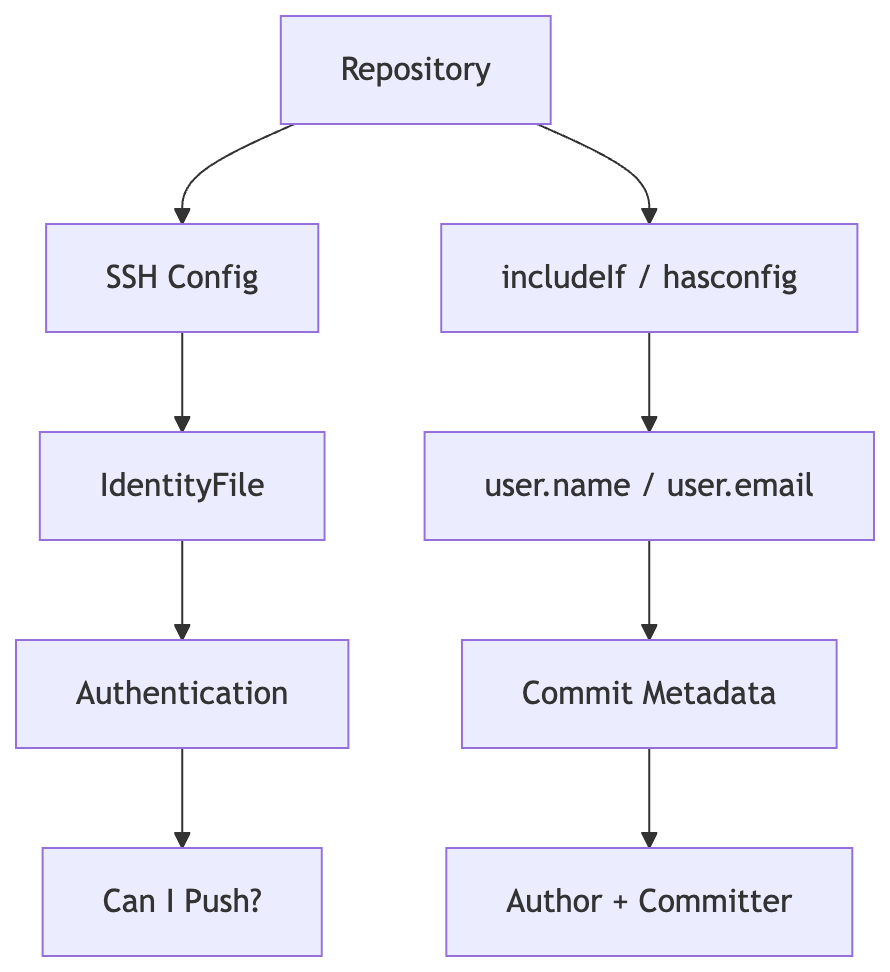
Authentication determines whether you're allowed to push.
Git configuration determines who gets credit for the commit.
The commit object records both the Author and the Committer.
They're related—but they're not the same thing.
Once you separate those three layers, Git stops feeling magical and starts feeling predictable.